
Before You Begin
Learning Statement: In this article you’ll learn where to download the OMBEA software and how to install it.
Audience: This article is aimed at OMBEA System Administrators.
Audience: This article is aimed at OMBEA System Administrators.
Step 1: Confirm that you meet the requirements
- You find the system requirements and how to check them here.
Step 2: Installing OMBEA Response 360
You must be logged in as a system administrator on any machine upon you wish to install OMBEA Response 360.
For Microsoft Windows
- Download OMBEA Response 360 from here.
- Ensure you are logged in to your computer as an administrator.
- Double click on the OR360Setup.exe file and follow the instructions on screen.
- Double click on the OMBEA Response 360 icon on your desktop.
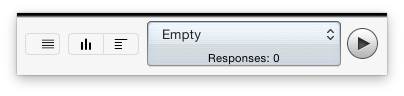
- The OMBEA Response 360 Polling bar will appear on your Microsoft Windows Desktop.
For Apple Mac
- Download OMBEA Response 360 from here.
- Ensure you are logged in to your computer as an administrator.
- Double click on the OR360Setup.dmg file.
- Drag the OMBEA Response 360 application icon to your OSX Applications folder.
- Double click on the OMBEA Response 360 icon in your Applications folder.
- The OMBEA Response 360 Polling bar will appear.
- To keep the OMBEA Response 360 icon on your Dock, right-click on the dock icon and select Options > Keep in Dock.